Quick Projects
The Quick Project feature provides the fastest way to get started with a capture — a TBC (Time Base Corrected) file from ld-decode or vhs-decode, or a CVBS file. Instead of manually creating a new project and configuring all the settings, a quick project automatically sets up everything you need with just a few clicks or a single command.
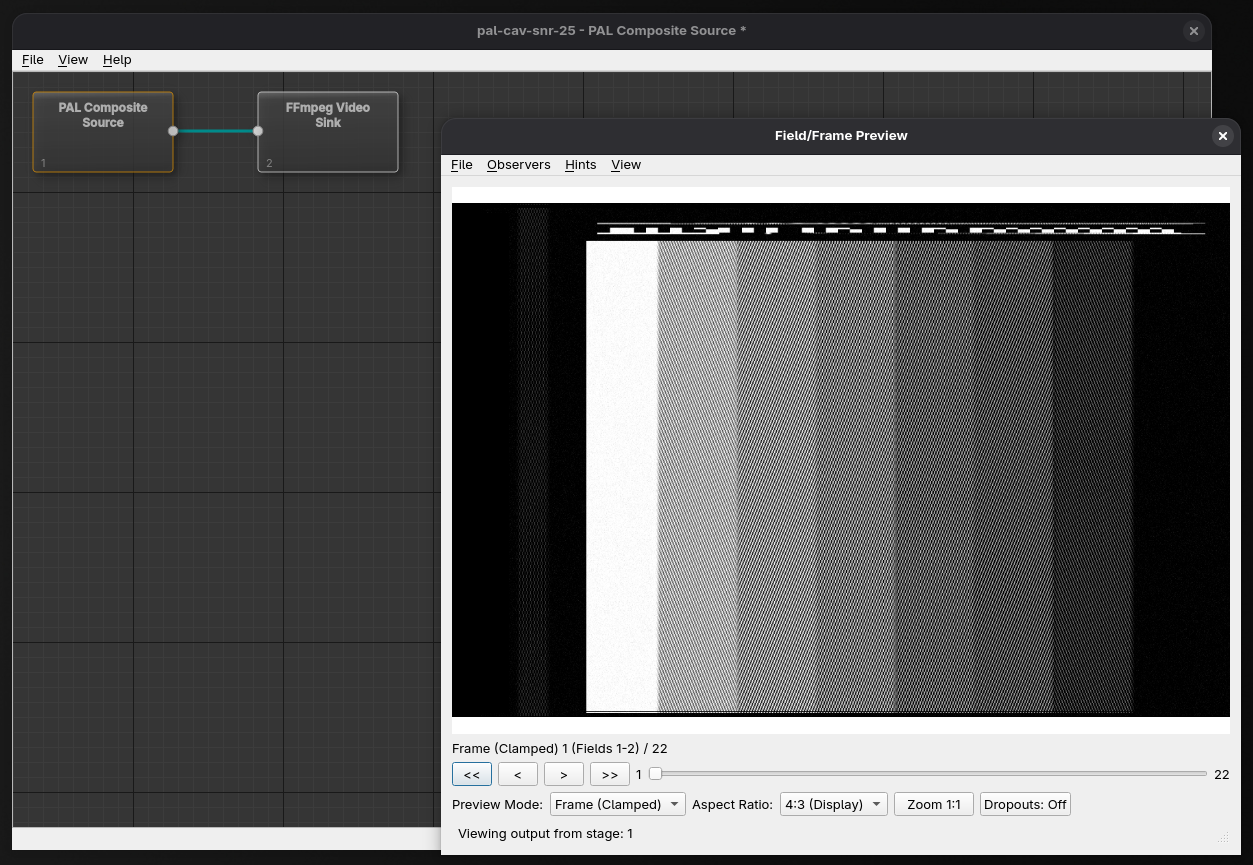
Using Quick Project in the GUI
Menu Option
- Open File → Quick Project... (Ctrl+Shift+Q)
- A file dialog will open asking you to select a video file
- Choose a
.tbc,.tbcc, or.tbcyfile (TBC captures), or a.cvbs,.cvbsy, or.cvbscfile (CVBS captures) from your system - The application will automatically:
- Detect the video format based on the file metadata (
.tbc.dbfor TBC,.metafor CVBS) - Create a new project
- Configure the appropriate video system (PAL/NTSC/PAL-M) and source type
- Build a pipeline appropriate to the decoder that produced the source (see Pipeline layout below)
- Attach the optional sidecars found next to the capture (
.pcmanalogue audio and.efmdisc data) - Select the source stage (with View → Show Preview on Selection enabled, the preview opens automatically)
- Detect the video format based on the file metadata (
If the metadata file is missing the quick project is not created, and a message names the file it looked for. For a Y/C capture both files of the pair must be present.
Large sources take a moment to open before the preview can appear: the pipeline is run far enough to discover what the selected stage can show. When that takes longer than a fraction of a second an Opening Project dialog reports which stage is being executed and how long it has been running. It has no Cancel button — opening a source cannot be interrupted — and closes on its own once the preview is ready.
Pipeline layout
The stages a quick project creates depend on the decoder recorded in the source metadata:
- ld-decode sources get a source stage, a Dropout Correction stage, and a Video Sink stage, connected in sequence (
source → dropout correction → video sink). If the source has an EFM sidecar (.efm, plus its.efm.metaindex for a CVBS capture), an EFM Audio Decode stage is spliced into the chain after Dropout Correction (source → dropout correction → EFM audio decode → video sink), so the video sink embeds the disc's digital audio. No separate EFM sink is added — the decode stage in the chain is enough. - All other sources (for example vhs-decode) get just a source stage and a Video Sink stage, connected together.
The decoder is read from the source metadata: the decoder field of the .tbc.db (TBC) or .meta (CVBS) database. Older TBC captures with only legacy JSON (.tbc.json) metadata do not carry a reliable decoder identity and are always treated as non-ld-decode, so they receive the plain source → video sink pipeline.
Creating a Quick Project from the Command Line
Using the --quick Option
To create a quick project from the command line, use the --quick flag followed by the file path:
You can also pass a capture file directly as an argument; the application recognises it by its extension and creates a quick project (a .orcprj file is opened as a project instead):
The application supports the following video file formats:
.tbc- Composite TBC video files.tbcy/.tbcc- Y/C TBC video files (luma and chroma; both files required as a pair).cvbs- Composite CVBS video files.cvbsy/.cvbsc- Y/C CVBS video files (both files required as a pair)
Tips
- Quick projects are ideal for quickly previewing and analyzing video files without project setup overhead
- Set the Video Sink's output path and mode with Edit Parameters…, or apply an export preset with its FFmpeg Preset Config stage tool, before triggering it
- If you need to save your project for later, use File → Save Project As and give it a meaningful name
- All standard editing and analysis tools remain available after creating a quick project