Preview
The Field/Frame Preview window shows the output of the stage selected in the graph editor. It is not a stage itself, but a UI tool that attaches to any stage able to produce a preview, and it is where the scopes and observers described below are opened from.
Previewing is intended for validation and tuning. It lets you check timing, field order, signal integrity and the effect of transform stages before committing to final outputs. It never changes what the pipeline produces.
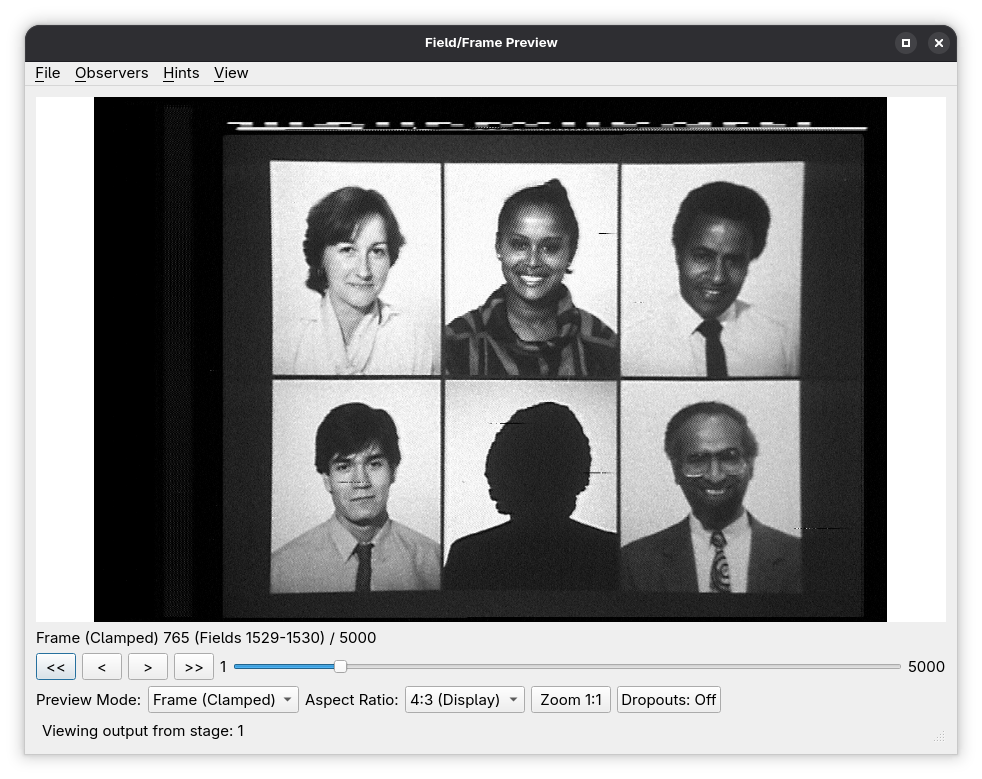
Opening the preview
- View → Show Preview (Ctrl+Shift+P) in the main window, or the preview button on the toolbar, opens the window or brings it to the front.
- With View → Show Preview on Selection ticked (the default), selecting a stage opens the preview on that stage.
- Double-clicking a stage in the graph editor opens the preview on it.
The status bar at the bottom names the stage being viewed. A stage that is slow to render (a 3D chroma decoder or a neural stage, for example) changes the window title to Field/Frame Preview - Rendering... after two seconds, so it is clear that the application is still working.
When a project is opened, or a quick project created, the pipeline first has to be run far enough to know what the selected stage can show. If that takes more than a moment an Opening Project dialogue appears, naming the stage being executed (Executing <stage> (1 of 2)…) and counting the seconds. It has no Cancel button — the wait is a source opening its files, which cannot be interrupted — and closes on its own once the preview is ready.
Navigation bar
| Control | Description |
|---|---|
| << / >> | Jump to the first or last frame (or field). |
| < / > | Step back or forward one frame (or field). Hold to step continuously. |
| ▶ / ⏸ | Play from the current position, or pause. Playback runs at the video rate (25 fps for PAL, about 30 fps for NTSC), or follows the audio when an audio pair is selected (see Audio playback). Pressing play at the last frame starts again from the first. |
| Number box | Type a frame (or field) number to jump straight to it. Numbers are 1-based, matching every other frame number shown in the GUI. |
| Slider | Drag to scrub through the whole range. The picture keeps up while dragging and the final position is rendered as soon as the slider is released. |
Above the navigation bar an information line describes what is on show — for example Frame 765 (Fields 1529-1530) / 5000.
Frame numbers refer to the output of the previewed stage, not to the original capture: after a frame_map or source_align, frame 1 is the first frame that stage outputs.
Control row
| Control | Description |
|---|---|
| Preview Mode | How the output is shown. The stage offers the choices — typically a frame view (both fields woven together), single fields, a frame with the field order reversed, or a split view, and on a decoding sink the decoded colour output as well. |
| Channel | Y/C sources only: Y+C (the two channels summed into a composite picture), Luma (Y) or Chroma (C). Hidden for composite sources. |
| Aspect Ratio | 1:1 (Square) shows the samples as square pixels; 4:3 (Display) shows the picture at its display shape. |
| Zoom 1:1 | Resizes the window so the picture is drawn at its native size. |
| Dropouts: Off / On | Overlays the regions the pipeline has flagged as dropouts at this stage. |
| Audio and volume | Choose an audio channel pair to play with the preview, and its volume. See below. |
Clicking on the picture sets cross-hairs at that point and opens the Frame Scope on that line; dragging moves the scope from line to line.
Audio playback
When the previewed stage's output carries audio channel pairs, the Audio selector lists them (as index: name) after Mute/None, and a volume slider sits beside it. Select a pair and press play to hear it with the picture. When the stage's output carries no audio, the selector is greyed out and its tooltip says why; builds without audio support do not show the controls at all.
Playback is audio-mastered: the audio plays continuously at normal speed and the picture chases it. Preview rendering cannot be relied on to reach real time — a 3D chroma decoder or a neural stage may need seconds per frame — so the preview shows whichever frame the audio has reached and skips the frames the renderer could not deliver in time. The sound is always continuous; on a heavy pipeline the picture simply refreshes less often.
Points to be aware of:
- Some sources decode their whole audio stream on first access (a TBC source, an imported WAV, or an EFM disc decode, which can take minutes). A progress window appears when the wait is long enough to notice, and the prepared audio is kept so that pausing and resuming is immediate. CVBS containers read audio per frame and need no preparation.
- Preparing audio for a TBC, imported or EFM source holds the decoded stream in memory, which can reach hundreds of megabytes on a feature-length title.
- The volume can be set before pressing play, and changes take effect immediately.
- Choosing a different pair during playback carries on playing, on the new pair, from the position reached.
- Channel-pair numbering belongs to each stage's output, so the list is re-read whenever you preview a different stage. The pair you chose is remembered by its name and origin and selected again on a stage that carries it; on a stage that does not, the selector shows Mute/None until you return to one that does.
- Editing parameters or the graph invalidates the prepared audio and stops playback; press play again to restart.
- Scrubbing during playback restarts the audio from the new position.
- Choosing Mute/None during playback ends the audio session, so the preview reverts to timer-paced video-only playback. Picking a pair again resumes audio-mastered playback from the position reached.
Menus
File
| Action | Shortcut | Description |
|---|---|---|
| Export PNG... | Ctrl+Shift+E | Saves the picture currently shown as a PNG file. On a Y/C source the file name gains _yc, _y or _c to say which channel was exported. |
Observers
Observers decode information carried in the signal and show it in floating windows that update as you move through the frames. See Observers for what each observer measures.
| Action | Shortcut | Description |
|---|---|---|
| VBI Decoder | Ctrl+Shift+V | LaserDisc VBI data for the current frame: the raw biphase words on lines 16–18, picture number, CLV timecode, chapter number and user code, picture-stop, lead-in and lead-out codes, and the programme status (with tabs for the original specification and Amendment 2). |
| NTSC Observer | Ctrl+Shift+N | Per-field FM code (presence, data and field flag) and white flag. NTSC projects only. |
| Video Parameters | Ctrl+Shift+H | The video parameters in effect at the previewed stage — system, frame width, burst and active ranges, sync/black/white levels — and, per field, the colour frame index, burst level, white SNR, black PSNR, quality score and dropout count. |
| Closed Captions | Ctrl+Shift+C | A running transcript of the EIA-608 line 21 caption service, following the preview position. NTSC projects only; see Closed Caption Observer. |
Observer entries that do not apply to the project's video system are greyed out.
Observations are computed in the background and kept, so moving back to a frame already seen is immediate. While an observer window is waiting for a frame's results it shows Computing observations…. The main window's status bar reports the background work as a whole:
- Computing observations… N% — frames are being analysed.
- Checking observations… N% — the results were already stored (from an earlier session, for example) and are only being checked as complete.
- Observations paused during playback… N% — the whole-stage sweep is held back while the preview plays, so that it does not compete with playback; it resumes when playback stops.
View
The View menu opens floating scope windows that read the same frame the preview is showing. Each is a separate window, so a scope can be left open while parameters upstream of it are adjusted. An entry only appears when the previewed stage can supply that view.
| Tool | Shortcut | What it shows |
|---|---|---|
| Frame Timing | Ctrl+Shift+T | The signal across all lines of the current frame as one continuous waveform. |
| Waveform Monitor | Ctrl+Shift+W | Stacked histogram of sample values across a range of lines. |
| Vectorscope | Ctrl+Shift+S | U/V chroma scatter on a vectorscope graticule. |
| Video Histogram | Ctrl+Shift+I | Distribution of luma and colour-difference levels in the decoded picture. |
Help
Help → User Guide… opens the preview window's built-in help, which carries a fuller description of every scope control, including the vectorscope graticule conventions and burst read-outs.
Signal analysis tools
Waveform Monitor
| Control | Description |
|---|---|
| Channel | Y+C (Composite) accumulates the full composite signal; Y (Luma only) uses the separate luma channel when the source has one, and otherwise the composite signal low-pass filtered to remove the colour subcarrier. |
| Range | Active video accumulates only the visible part of each line; Whole frame includes sync and blanking. |
| Field | Frame accumulates both fields together; Field 1 and Field 2 accumulate one field only. |
| Phosphor | Draws a green trace on black, in the style of an analogue oscilloscope. |
| Intensity | Brightness gain applied to the accumulated trace. |
The colour subcarrier phase alternates from field to field, so plotting the two fields separately separates field-correlated interference — subcarrier leakage into sync, for example — from noise that is random across the frame. The Field selector is disabled when the preview supplies a single field, which has no second field to compare against.
Vectorscope
The scope has two acquisitions and does not let you choose between them: the output being previewed settles which one runs. A chroma decoder's colour output gives the decoded (grading) plot of the U/V planes the decoder produced; a CVBS or Y/C output gives the composite (measurement) plot, demodulated from the carrier against a burst-locked reference with the burst and both PAL line phases still in the data set. The Acquisition box reports which is in force.
What the scope takes off the frame is set in two groups, one for each axis of the raster. Within each group the options are alternatives, so exactly one is in force at a time.
| Control | Description |
|---|---|
| Line View | Composite only — the decoded planes hold active picture, with no sync, porch or burst to choose between. Active line samples the active picture window, Whole line the entire line including sync and porches, Burst only the colour-burst window on the back porch. |
| Field View | Active field (the default) plots the active picture only, which is what the decoded acquisition shows, so the two acquisitions cover the same lines of the frame. Whole field plots every line. Selected line(s) plots a named range, the way a real instrument's line-select works. |
| Start line / End line | Enabled by Selected line(s). Untick End line to plot the start line on its own. The spin boxes only offer lines the plot can show: a frame of the system being plotted (625 for PAL, 525 for NTSC and PAL-M), and — when Field Selection names one field — only that field's lines. |
| Field Selection | Which field (both, first, or second) contributes to the plot. Restricting it to one field also restricts which lines Selected line(s) may name. |
| Graticule, Colorize, Defocus, Draw Trace Lines, Gain | Display controls over the plotted trace. |
Line numbers count through the interlaced frame: line 1 is the top line and consecutive numbers alternate fields — the same numbering the active picture is stated in — so both acquisitions can be pointed at exactly the same lines.
The burst measurement read-outs shown with the composite acquisition are computed from every active line of the frame: the field view changes what is plotted, not what is measured, so narrowing the range does not move the readings.
Video Histogram
Plots how many pixels of the current picture fall at each signal level, one chart per component. Channels chooses the colour-difference pair shown beside luma: YUV or YIQ. The heading above the charts names the field, picture size and system.
GPU drawing
The picture and the scope canvases are drawn on the graphics card when the machine supports it, and on the CPU otherwise; both paths produce the same picture. Which one is in use, and how to turn the GPU path off, is described under Tools → Logging… and Help → About in the main window guide.
Stage-specific preview behaviour
Some stages add to what the preview shows.
Dropout-related stages
With Dropouts: On, stages such as dropout_map and dropout_correct show the dropout regions they carry. dropout_correct can also fill the regions it corrected with white when its highlight_corrections parameter is enabled. Dropout regions themselves are edited in the Dropout Editor.
Masking stages
For stages such as mask_line, the preview shows masked regions directly in the rendered image, so the line selection and mask level can be checked at a glance.
Parameter override stages
Stages such as video_params change the active video boundaries, black and white levels, and burst region that downstream stages and the preview work from. The preview always reflects the effective parameters after overrides.
Typical preview workflows
- Verifying capture integrity immediately after a source stage
- Checking alignment after
frame_mapandsource_align - Tuning
stackerparameters while watching dropout behaviour - Validating dropout correction before committing to final output
- Confirming active video and masking settings
When several branches exist, each can be previewed by selecting its stages in turn — the cursor keys and Tab in the graph editor (see Keyboard Navigation) make stepping between two stages quick.